THE TOOLS
Capital Integration — Three Tools, One Thread
Capital's three upfront design tools — Systems Architect, Systems Modeler, and Logic Designer — all read and write the same Teamcenter-backed logical structure through one plugin JAR. This is the field guide to what each tool contributes to the thread, and to the shared machinery underneath.
Each tool owns a different altitude of the electrical design: Systems Architect owns the platform architecture (LRUs, allocations, carriers), Systems Modeler hosts the functional layer (functions and signals, mastered upstream in SysML), and Logic Designer owns the schematic detail (devices, connectors, nets). Our plugin gives each of them the same three capabilities — publish into the hub, see the live Teamcenter structure, and place work under the shared MIL-STD-1808 spine — so a change made anywhere lands in one common Logical BOM.
Systems Architect proven live
SA is the richest surface: it hosts both platform architecture designs and their associated functional designs, and it is where the parented-structure workflow was proven end to end on the UAV Platform demo.
Publish to Teamcenter… (platform designs)
A read-only custom action walks the open platform design and emits a v1.2 Logical BOM bundle: components with ports and TC_PARAM_* maturing parameters, carriers, signals and messages, functions, allocations, and component-to-component connections derived from interface mappings (two components sharing a signal on a carrier become an edge — no one draws it twice). Delivery is an atomic outbox JSON file plus an optional POST to the hub's /import/bundle. Structure metadata rides along as properties: TC_PARENT_ID, TC_PROVENANCE, TC_EFFECTIVITY. The proof point: republishing the Capital-materialized UAV Platform produced items_created 0, occurrences_added 24, nested_parents 15, errors none — the hub adopted every existing Teamcenter item and nested the tree under the 1808 spine instead of minting duplicates.
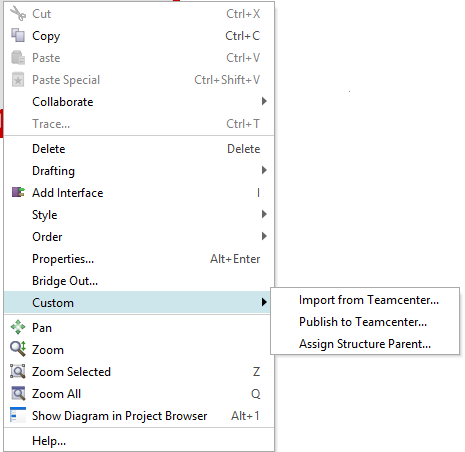
Import from Teamcenter… (platform designs)
The mirror action is a sync-and-audit, shaped by what the 2512 custom-action API permits: it can update attributes and properties on ECUs and carriers (matched by TC_ID property, then by name) but cannot create objects or make allocations. So it syncs what it can and verifies the rest — is each function allocated, is each signal assigned to the carrier Teamcenter says, does every connection endpoint exist — and writes every gap to a "Teamcenter Import" output tab. Writes are staged and applied atomically only when the action succeeds; a failed validation changes nothing. Gap-closing pairs with SA's own rule automation: Allocate-by-Property and Assign-to-Carrier constraints keyed off the synced TC_* properties close the gaps correct-by-construction.
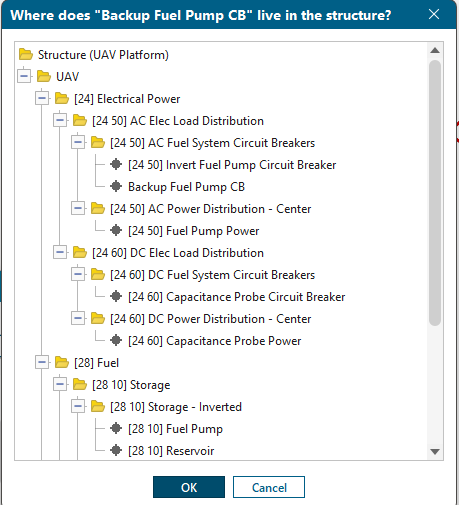
Assign Structure Parent… — the tree picker
Select one or more components, right-click → Custom → Assign Structure Parent…, and we show a modal tree of the live Teamcenter structure — names plus 1808 chapter addresses, fetched fresh on every use. Picking a node stamps TC_PARENT_ID on every selected component through the plugin write API (writes commit only when the action returns true, which is why this is an action rather than a panel button). Because it reads Teamcenter live, it never needs a refresh; when the architect adds a spine node, it appears here immediately. This is the source-of-truth picker.
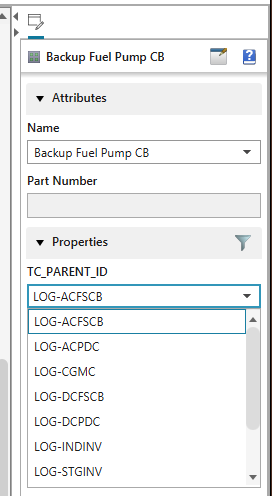
The QAP dropdown — parent picking without a dialog
For the fastest path, TC_PARENT_ID is also a Quick Access Panel dropdown. The values come from the project's Object Type Information (OTI): the hub generates the objecttypeinfomgr section into the project XML automatically — valid parents are every element referenced as a parent plus every architect-owned (sysml*) node, derived from the Teamcenter-backed bundle, never hand-typed. OTI is applied at project bootstrap; spine changes (rare, architect-gated) are picked up by a 30-second PM hand-edit or a re-bootstrap, while the Assign dialog stays current by construction.
Functional publish
On functional designs, Publish to Teamcenter (Functional)… publishes functions, signals, and directed nets. The round trip is closed: the TC-authored Guidance Demo, materialized into Capital as project XML and republished, resolved every original Teamcenter object — 16 items existing, 0 created, 0 errors — because the publisher's external-id ladder (TC_ID property → Element ID property → Capital UID) finds the identity Teamcenter stamped at materialization.
Systems Modeler proven live
Systems Modeler is the functional-design authoring seat, and in our ownership model it hosts a read-mostly copy of what SysML masters: functions, their hierarchy, and their information flows arrive via the project-XML bridge or the bundle contract, keyed by the Element ID each object carries. The same plugin JAR loads here unchanged.
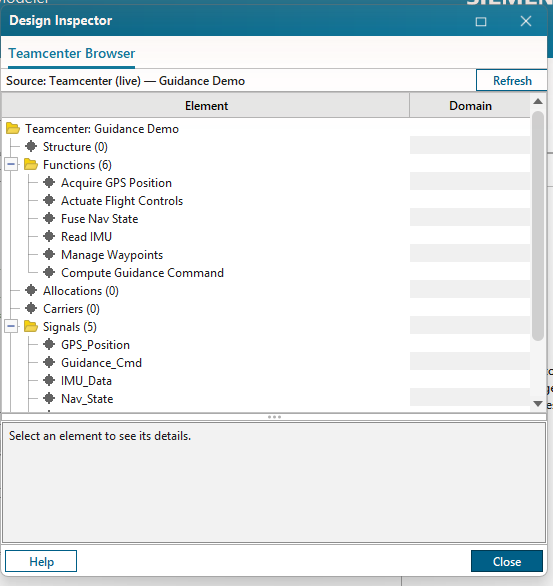
Two surfaces appear. First, the Teamcenter tab docks natively in the left Design Tree window, beside Design / Shared / Groups / Symbols — the Teamcenter feed sits exactly where a Modeler user already looks. Second, the Teamcenter Browser panel hosts in the Design Inspector (we added the functional inspection variant after finding the Inspector empty on Modeler — "no inspection views" simply meant no one had implemented one). Both render the same live bundle: functions with allocations, signals, requirements, and the nested structure. Live-verified with Modeler open on Guidance Demo: the tab follows the open project and shows its 6 functions and 5 signals against Teamcenter.
Logic Designer proven live
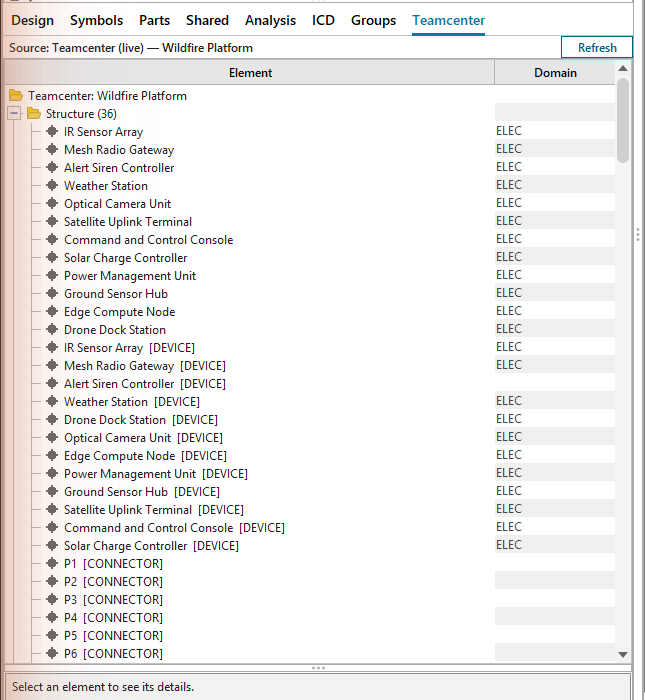
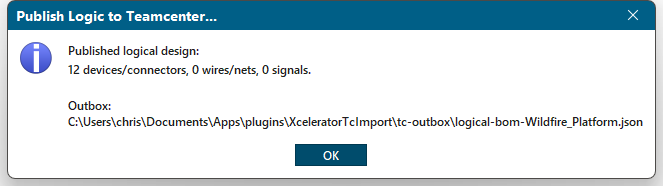
Logic designs — typically generated from a platform design via Capital's native Generate Logical Designs — carry the schematic detail: devices, connectors, nets, wires. Publish Logic to Teamcenter… is available in any app with a logic design open (Logic Designer, Platform Designer, SA) and performs the detail roll-up:
- Devices publish as
type=DEVICEcomponents and nest in the LBOM under the platform component they realize (name-matched, deterministic<parent>-DEVitem ids), trace-linked to their source component — so functional, platform, and logic layers share one Teamcenter LBOM. - Connectors publish as
type=CONNECTORand sit under the LBOM root as<PROJ>-LC-<name>items. - Nets and conductors are reconstructed even though Capital's
IXNetexposes no endpoints: we walk device and connector pins, group by conductor, and resolve connector pins to their owning device — so a conductor lands in Teamcenter as aFnd0LogicConnreading device-to-device (verified: COND1 = Edge Compute Node ↔ Optical Camera Unit).
Two hard-won mechanics matter here. Stable ids: regenerating a logical design mints all-new Capital UIDs, so the publisher derives bundle ids that survive regeneration — stamped TC_ID/Element ID win, then a device keys on its source cluster (Component_Base_ID + "-DEV"), a connector on owner + name, nets on their names. Regenerate and republish means updates, not duplicates. Type stamping at creation: the Saber BMIDE structure rule only accepts componentType children under a System Block, so device/connector distinction lives on the revision's seg0Kind attribute — which must be stamped at creation, because property updates are a silent no-op on the 2506 JSON gateway (probe-verified across every setProperties variant).
The browser comes along too: logic designs get both the Design Tree Teamcenter tab and the Design Inspector Teamcenter Browser, with devices tagged [DEVICE] in the tree. Live-verified on the Wildfire logic design, with the Main log reading Custom plugins loaded: 92.
The Teamcenter Browser everywhere
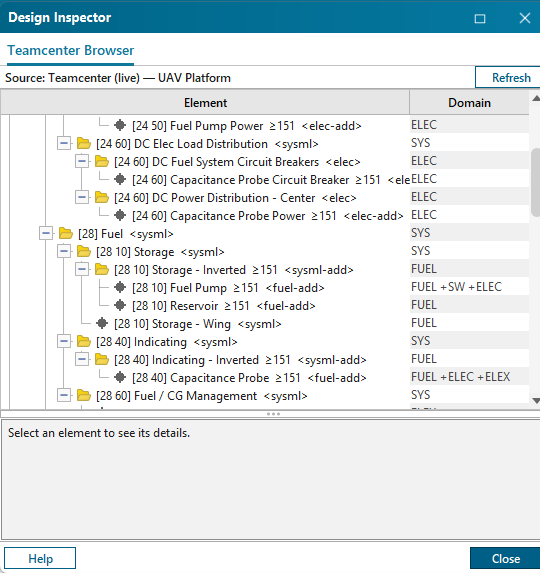
There is exactly one browser implementation — TcBrowserUi, a Swing tree-table — rendered by five thin host classes so it appears wherever Capital allows a panel: as a Design Tree tab on functional and logic designs, and as a Design Inspector panel on platform, functional, and logic designs. Fix the UI once, every seat gets it.
It is a tree-table with Element and Domain columns. The Domain column shows each element's hub-derived participation set — the fuel pump reads FUEL +SW +ELEC because it is fuel-owned, runs firmware, and draws power — one element, one identity, visible from every discipline's seat. The Structure node nests components by TC_PARENT_ID into the full 1808 tree, with addresses, effectivity pills, and provenance. The detail pane adds Teamcenter annotations (tcStatus, real TC UIDs, last-modified) batch-fetched by the hub in one round trip.
The browser follows the open project automatically (tc.project=auto is the standard). Project identity resolves down a ladder: the stamped TC identity on the design (TC_ID, then Element ID — which is why materialized designs survive renames) → the Capital project name (which is why a generated logic design named "Unassigned - 3" still resolves to Wildfire Platform) → the design name. The Inspector-hosted panels additionally follow project switches live: Capital calls update(ctx) on every selection change, we do a cheap string compare, and reload only when the project actually changed. Verified across all three apps simultaneously: SA on Wildfire, Modeler on Guidance Demo, Logic Designer on Wildfire, each showing its own project.
The engineer experience for a change
Everything above collapses, for the engineer, into three moves. This is the workflow we proved live as the demo's step 7: a new circuit breaker drawn in SA landed in Teamcenter nested under [24 50] AC Fuel System Circuit Breakers, zero errors, visible in Systemscenter seconds later with its elec-add provenance and ≥151 effectivity.
Home ribbon → Component → two clicks on the canvas. Name it in Properties.
QAP TC_PARENT_ID dropdown for speed, or Assign Structure Parent… for the live tree with friendly names and 1808 addresses. That single property is all the structure input we ask for.
Right-click canvas → Custom → Publish to Teamcenter… (Enter or double-click to fire). The bundle goes to the hub as outbox file + POST.
Everything else is automatic, by hub design. Provenance derives from the publishing tool (capital* → elec-add, nx* → fuel-add, cameo/sysml → sysml-add). Effectivity inherits the design-level TC_EFFECTIVITY the lead sets once per change wave. Identity falls back to Capital's internal UID if no Element ID was stamped. And merge-preserve guarantees a re-publish can never strip enrichment the tool didn't send — a naive republish is always safe.
Plugin mechanics
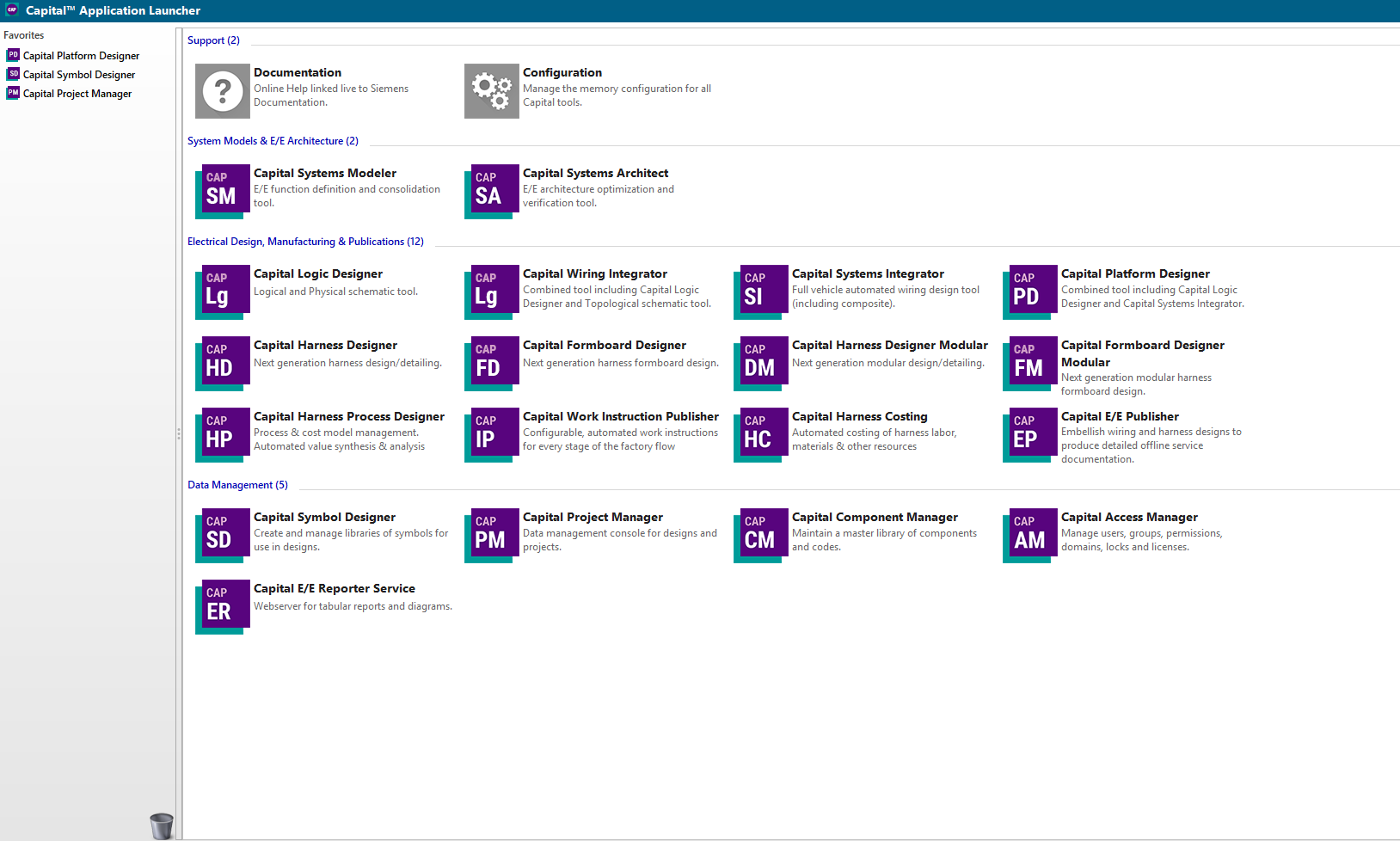
One install, one plugins folder, every app: all three tools scan <CapitalHome>\plugins\ at startup, so a single deployment serves SA, Modeler, and Logic Designer.
# build with Capital's own toolchain (bundled ecj + Java 21 — no JDK install)
.\build.ps1 -Deploy

# deploys to <CapitalHome>\plugins\XceleratorTcImport\
#   capital-tc-import.jar        the plugin (all ten classes)
#   tc-connection.properties     copied only if missing — live config survives redeploys
#   extras\jackson-*.jar         taken from Capital's own lib\ (avoids classloader conflicts)
Deployment discipline matters because Capital's JVM file-locks loaded jars: overwriting the file does not reach the classloader, "Reload All" serves cached content, and new classes never hot-reload. The reliable procedure is close all Capital apps → build.ps1 -Deploy → restart (a freed license takes about a minute — an immediate relaunch fails). Verify the load in the Main log: Custom plugins loaded: N — the count is the ground truth that your classes are in.
Extension points — the complete map
Ten classes in com.xcelerator.capital.tcimport.plugin, each implementing one of Capital 2512's supported extension interfaces (all under com.mentor.chs.plugin.*). The five panel hosts share TcBrowserUi.
| Class | Extension interface | Design type | What it does |
|---|---|---|---|
TcPublishAction | IXPlatformArchitectureDesignAction | Platform | "Publish to Teamcenter…" — walks the design into a Logical BOM bundle (components + ports, carriers, signals/messages, allocations, derived connections, TC_PARAM_*, REQ_*); outbox + POST |
TcImportAction | IXPlatformArchitectureDesignAction | Platform | "Import from Teamcenter…" — syncs TC data onto matched components/carriers, verifies functions/signals/messages/allocations, reports every gap; all-or-nothing |
TcAssignParentAction | IXPlatformArchitectureDesignAction | Platform | "Assign Structure Parent…" — live TC structure tree picker; stamps TC_PARENT_ID on the selection |
TcFunctionalPublishAction | IXFunctionDesignAction | Functional | "Publish to Teamcenter (Functional)…" — functions, signals, directed nets |
TcLogicPublishAction | IXLogicAction + IXLogicPlugin | Logic | "Publish Logic to Teamcenter…" — devices/connectors/nets with stable ids and the under-platform-component roll-up |
TcBrowserTabPanel | IXFunctionDesignTabPanel | Functional | "Teamcenter" tab in the Design Tree window |
TcFunctionBrowserPanel | IXFunctionDesignInspectionPanel | Functional | "Teamcenter Browser" panel in the Design Inspector |
TcBrowserPanel | IXPlatformDesignInspectionPanel | Platform | "Teamcenter Browser" panel in the Design Inspector (docks anywhere, including the left panel set) |
TcLogicBrowserTabPanel | IXLogicDesignTabPanel | Logic | "Teamcenter" tab in the Design Tree window |
TcLogicBrowserPanel | IXLogicInspectionPanel | Logic | "Teamcenter Browser" panel in the Design Inspector |
The deployed configuration is four lines that decide everything the panels and publishers do:
tc.baseUrl=http://localhost:8080   # the hub (tc-service)
tc.source=rest                     # live REST, with bundle-file and demo fallbacks
tc.project=auto                    # follow the open project (stamped id → project → design)
publish.postEnabled=true           # POST /import/bundle, plus the outbox file always
One deliberate asymmetry underpins all of it: the plugin API can read everything but create nothing, so schematics are always authored natively (or materialized via project XML) and the plugin's job is identity, structure, and delivery. That constraint is why the integration is safe — Capital's model is only ever changed by Capital.